By default, cmd.exe isn’t especially friendly for most tasks, including basic things like copying and pasting text. Displaying long paths while still allowing you to see the commands you’re typing is even worse. Here are a few ways you can make the Windows shell less awful to work in.
Quick and easy stuff
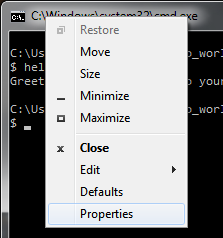
First, the point-and-click options. Right click the bar, go down to Properties. Set the colors and font to whatever floats your boat. On the Options tab, and enable QuickEdit and Insert modes; this allows you to left click highlight/copy text, and right click to paste into the CLI window. (There’s a reason this isn’t enabled by default.)
On the Layout tab, increase the Screen Buffer Size to something more useful. Mine’s set to a height of 1000. If you want the CLI window to be larger or smaller, you can do that, too.
Getting fancier
By default, my fingers type ls when I want the contents of a directory. When I’m in bash, I generally have ls aliased to ls -l, which is pretty close to the standard Windows dir command, so I’ve edited my registry to do this every time cmd.exe is launched (download .reg 258 bytes):
[HKEY_LOCAL_MACHINE\SOFTWARE\Microsoft\Command Processor]

"AutoRun"="doskey ls=dir"
(You can also do this is HKEY_CURRENT_USER, if you’d prefer this to be a per-user setting.)
If you don’t have permission to edit your registry, or don’t want to, or would rather come up with a script-y way of doing things, the command is “doskey ls=dir”, so you can type this into the CLI whenever you want, or write a script to do this another way. You can also add in other commands, if you find your fingers typing grep instead of findstr, for example.
Icing on the cake
This next piece is, in my opinion, the single most useful thing you can do to make the shell friendlier, aside from enabling Insert and QuickEdit. Using the prompt command, you can alter the appearance of your shell prompt. For example, to get a Unix-like prompt, you can do this:
prompt=$p$_%username%@%computername%:
To get a Terminal.app style prompt, you can do this:
prompt=$p$_[%username%@%computername%]$$$s
As I’m the only user on this machine, and I’m really only interested in my current working directory, I go with a simpler:
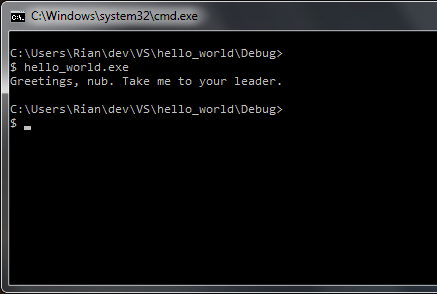
prompt=$p$g$_$$$s
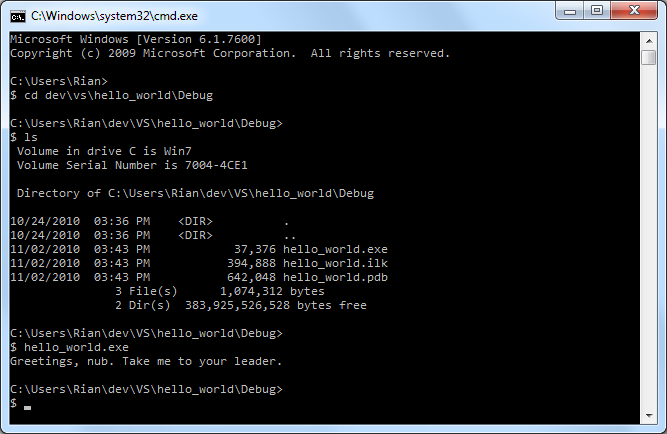
which gets me a prompt that looks like this:
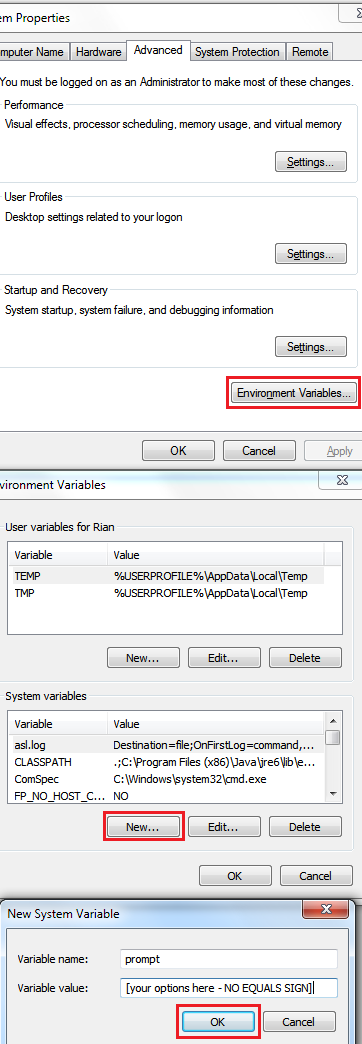
Play around with the prompt command until you find a setting that you like. (Type “prompt” with no arguments to go back to the Windows default if you make a mistake.) Once you’ve found a setting you like, you can make the change permanent by editing your environment variables.
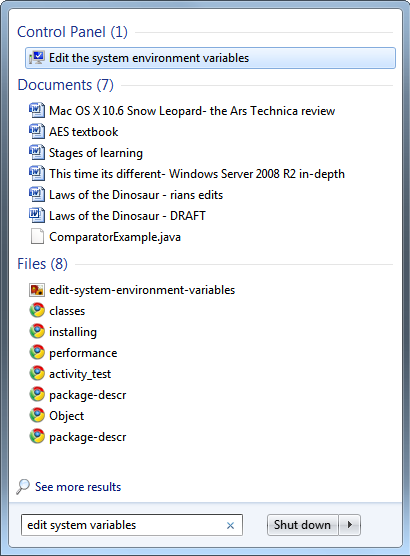
Tap the Windows key, type “environment variables”, and select “Edit the System Environment Variables”. (You’ll need to be logged in as an Administrator.)
Then do the following, entering your prompt options without the equals sign. Click OK and you’re finished!
The final results of the above look like this: